
 By Admin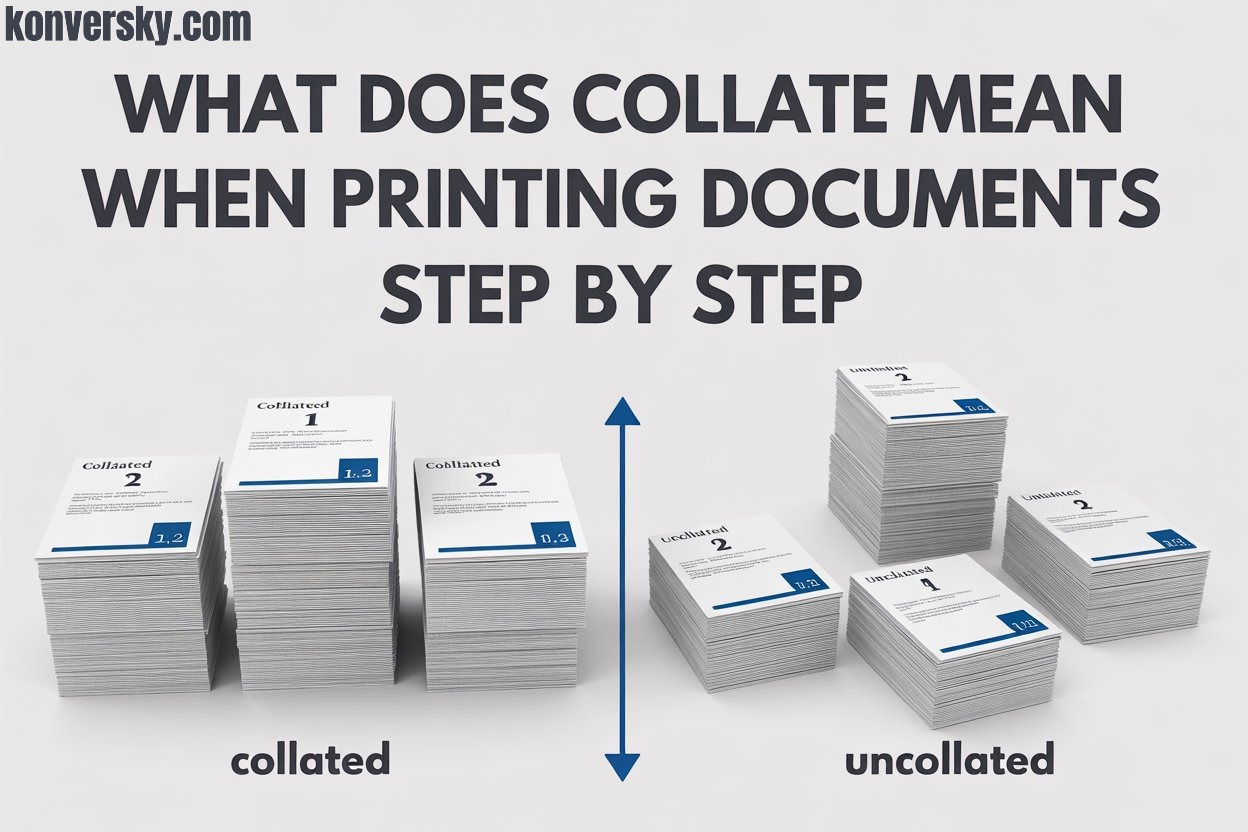
Introduction
Printing documents is a task most people do daily, yet many overlook important printer settings. One such setting is collate, which determines how pages are arranged when printing multiple copies. At first glance, collate may seem minor, but it can save time and prevent confusion. Without it, printed pages might end up in the wrong order, requiring manual sorting. Beginners and even experienced office users often struggle with this feature, simply because the term is not always clear in printer menus.
Collate works differently depending on whether it is turned on or off. When collate is on, each copy of a multi-page document prints in proper sequence. When it is off, pages are grouped by number, which can be confusing if you need ready-to-use copies. This small option can make a big difference, especially in offices, schools, or home printing tasks. Many users accidentally skip it, leading to wasted paper and extra effort. Understanding collate ensures smooth, organized printing every time.
In this article, we will explain collate step by step. Each instruction is simple and actionable, so you can follow it easily. By the end, you will know how to set collate correctly, whether you are printing reports, assignments, or office documents. This guide also highlights common mistakes and tips to avoid them. Once you understand collate, printing becomes faster, more efficient, and completely hassle-free. You will no longer struggle with mixed-up pages, and every copy will be ready to use immediately.
What Does Collate Mean in Printing?
Collate in printing is a feature that arranges pages in the correct order, making multiple copies easier to handle. It ensures that every printed set comes out complete and properly organized. Without collating, pages may come out mixed up, requiring extra time and effort to sort them manually. This feature is especially useful for multi-page documents like reports, books, brochures, or handouts. By using collate, you save time and reduce mistakes, ensuring that your printed copies are ready to use immediately. When collate is turned ON, the printer prints each complete set of pages in order.
For example, if you are printing three copies of a three-page document, the printer will output pages 1, 2, 3 for the first copy, pages 1, 2, 3 for the second copy, and pages 1, 2, 3 for the third. This method is very convenient because the pages in each copy are already arranged correctly. On the other hand, collate OFF prints all copies of one page first, then moves to the next page. Using the same example, it would print three copies of page 1, then three copies of page 2, and finally three copies of page 3. This method can be useful in some situations, especially for very large print jobs, but it requires manual effort to organize pages afterward.
Understanding collate and how it works can make printing simpler and more efficient. Choosing between collate ON and OFF depends on your printing needs, the type of document, and how many copies you need. Collating reduces errors, organizes your documents, and saves a lot of time and effort. Always check your printer settings before printing to make sure your pages come out in the right order. Using collate properly ensures every printed copy is complete, organized, and professional. With collating, even large printing tasks become easier to manage, allowing you to focus on other important work without worrying about sorting pages.
How Collate Works: Step by Step
Printing multiple copies of a document can be confusing without using the collate feature. Collate ensures that all pages are arranged in the correct order for each copy. Without it, you may end up with mixed-up pages, which means extra time spent sorting them manually. Understanding how collate works can save time, reduce mistakes, and make your printing process smoother. By following a few simple steps, even beginners can print documents efficiently and professionally. The first step is to open the document you want to print. Make sure it is complete and ready for printing.
Next, go to the printer settings on your computer or device. Look carefully for the collate option, which is usually near the number of copies. Here, you can choose ON or OFF depending on your needs. Collate ON prints each complete copy in order. For instance, if you print two copies of a three-page document, it will print pages 1, 2, 3 for the first copy, and pages 1, 2, 3 for the second. Collate OFF prints all copies of page 1 first, then page 2, then page 3, which requires manual sorting later.
Once you have selected your collate preference, it is always helpful to print a test copy. This ensures the pages come out in the correct sequence and prevents wasted paper. After confirming the test copy, you can print the remaining copies with confidence. Using collate properly makes the printing process organized, fast, and stress-free. Even large print jobs become manageable when pages are automatically arranged. By following these steps, you can avoid errors, save time, and produce professional-looking documents. Understanding collate allows anyone to handle printing tasks efficiently, whether for work, school, or personal projects.
Collate ON vs Collate OFF
Collate is a printing feature that organizes pages in the correct order when printing multiple copies. It helps save time and avoids confusion by preventing pages from being mixed up. Without collating, each set of pages must be manually sorted, which can be time-consuming and prone to errors. This feature is especially useful for multi-page documents like reports, booklets, brochures, or presentations. Using the correct collate setting ensures that every printed copy is complete and ready to use.
When Collate is ON, each copy prints in full sequence. For example, if you print two copies of a three-page document, the printer will produce pages 1, 2, 3 for the first copy, and pages 1, 2, 3 for the second copy. This method guarantees that each copy is ready to use immediately. Collate ON is convenient, reduces mistakes, and is perfect for small or medium print jobs where organization is important. It is especially helpful for office work, school assignments, and professional documents, as it eliminates the need to rearrange pages manually after printing.
Collate OFF works differently. It prints all copies of one page first, then moves to the next page. Using the same example, printing two copies of a three-page document results in page 1 twice, page 2 twice, and page 3 twice. This method can be useful for large print jobs or when pages are needed grouped by number. However, it requires manual sorting afterward to create complete sets. Understanding the difference between Collate ON and OFF helps you choose the best option for your printing needs. By selecting the correct setting, you save time, stay organized, and ensure professional results for every printing task.
When Should You Use Collate?
Collate is a printing feature that arranges pages in the correct order for multiple copies. It is especially useful whenever the order of pages matters. Without collating, pages can get mixed up, creating confusion and extra work. Understanding when to use collate can save time, reduce errors, and make your documents look professional.Collate is very helpful for office reports and presentations. Large reports often have multiple sections or chapters, and each copy needs to stay in the correct order. Using collate ensures that every copy is complete, organized, and ready to distribute. Similarly, presentations or handouts for meetings are more efficient when collated.
Each set comes out properly arranged, saving time and effort for both preparation and distribution.Students and educators can also benefit from collate. Printing school or college assignments in order allows multiple copies to be ready for submission or review without manual sorting. Multi-page projects, research papers, or portfolios can be printed efficiently with collate, keeping each copy intact. Collate is also essential when preparing documents for clients or meetings. Proposals, reports, or manuals need to be organized, professional, and easy to read. Using collate ensures that every page appears in sequence, preventing mistakes and maintaining a polished appearance.
Overall, collate is best for any scenario where page order is important. Training manuals, brochures, portfolios, and multi-section documents all benefit from this feature. Always check your printer settings before printing to ensure collate is enabled if needed. Proper use of collate reduces errors, saves time, and makes the printing process smoother. Whether for work, school, or personal projects, collating keeps documents organized and professional. By using this feature wisely, you ensure that each printed copy is complete, easy to use, and visually correct, making your tasks more efficient and less stressful.
Common Mistakes and Tips
Printing documents may seem straightforward, but small mistakes can lead to major issues. One of the most common errors is forgetting to check the collate option before printing. Without collate, pages can come out mixed, and you will need extra time to manually sort them. This is especially frustrating when printing multiple copies of multi-page documents like reports, brochures, or presentations. Always check the collate setting before starting a print job to ensure each copy is complete and in the correct order.Another mistake many users make is confusing collate with duplex or double-sided printing. Collate arranges pages sequentially for multiple copies, whereas duplex prints on both sides of a sheet.
Using one when you intended the other can result in incomplete or disorganized documents. For instance, printing a report with duplex but ignoring collate might leave pages out of sequence, causing unnecessary confusion. Understanding the difference between these settings is essential for professional and error-free printing.Printing too many copies without testing is another common issue. Jumping straight to large print jobs can lead to wasted paper and ink if something goes wrong. A small test print—just one or two copies—allows you to check the page order, collate setting, and overall layout. This simple step helps identify mistakes early and avoids unnecessary waste.
Additionally, always ensure that your printer software and drivers are updated, as outdated versions can sometimes misinterpret collate commands.In conclusion, avoiding these mistakes makes printing smoother and more efficient. Check collate settings before printing, understand the difference between collate and duplex, and always test before committing to large print runs. Following these tips saves time, reduces errors, and keeps your documents organized. Proper use of collate ensures that every copy is ready to distribute, professional in appearance, and free from confusion. By paying attention to these details, even complex printing tasks become simpler, faster, and more reliable.
Conclusion
Collate is a crucial feature in printing that helps keep documents organized and professional. It arranges pages in the correct sequence for each copy, which saves time and prevents confusion. Without collate, multi-page documents may come out mixed, requiring manual sorting and extra effort. Whether you are printing reports, school assignments, or client materials, understanding collate ensures smoother and more efficient printing. By using this feature correctly, you reduce errors and make every copy ready to use immediately. The benefits of collate extend to many scenarios. In offices, it is ideal for reports, presentations, and proposals, where each copy must maintain the correct page order.
For students, collate ensures assignments and research papers are printed correctly without having to sort pages manually. Client documents, brochures, and multi-page handouts also benefit greatly, as every copy comes out complete and organized. Enabling collate ensures that all pages print in sequence, which reduces mistakes and streamlines the printing process. Even large print jobs become manageable and efficient when collate is used consistently. To make the most of collate, follow a simple step-by-step approach. First, check the printer settings and turn on the collate option.
Next, print a test copy to confirm that the pages are in the correct order. Once verified, print the full set confidently. This method prevents wasted paper and time, while ensuring professional-looking results. Regularly using collate makes printing faster, smoother, and less stressful. It is a small feature, yet it has a significant impact on workflow efficiency. By understanding and applying collate properly, you guarantee that every printed copy is complete, organized, and ready to distribute. Whether for work, school, or personal projects, collate simplifies printing and keeps documents neat and professional, making it an essential tool for anyone who prints multi-page documents regularly.
Optional SEO Enhancements
Adding optional SEO enhancements can greatly improve the visibility and usefulness of your printing guides online. One effective method is including frequently asked questions (FAQs) that readers commonly search for. Providing a clear and simple answer reassures users and adds value to your content. guide readers on compatibility and printer settings. Including relevant FAQs not only helps your audience but also supports search engine optimization by targeting common search queries. Another helpful FAQ is “How to collate PDF files before printing?”
This can include simple instructions for popular PDF software or online tools. Additionally, you can offer practical tips for testing a small batch before printing large sets. These details make your content more useful and trustworthy. Including transition words like “furthermore,” “in addition,” and “also” makes the article easier to read and keeps the information organized. Clear explanations combined with concise sentences ensure that readers of all levels can follow along without confusion. Internal linking is another powerful SEO strategy. Linking to related content such as printing tips, office guides, or document tutorials helps readers explore more resources.
It also improves site navigation and boosts search engine rankings. For example, linking “printing tips” to a step-by-step guide or “document tutorials” to a PDF preparation article adds context and keeps readers engaged. Optional SEO enhancements, like well-placed FAQs and internal links, make your content more informative, structured, and user-friendly. By combining these techniques, you can create a helpful, professional, and optimized printing guide that attracts more visitors and provides value. Implementing these strategies ensures your content is not only discoverable but also practical and easy to use, helping readers solve real printing problems efficiently.